Introduction
This is a quickstart guide for using ComfyUI to generate AI art using text prompts (i.e. text-to-image). Unlike other tutorials, we are just going to jump into the fun part of generating images without spending hours going through AI concepts.
What is ComfyUI?
ComfyUI is a free web-based app for generating images/video/audio using workflows.
Workflows consist of nodes (processing steps) and edges (“lines”) connecting nodes via their inputs/outputs.
An over simplified explanation:
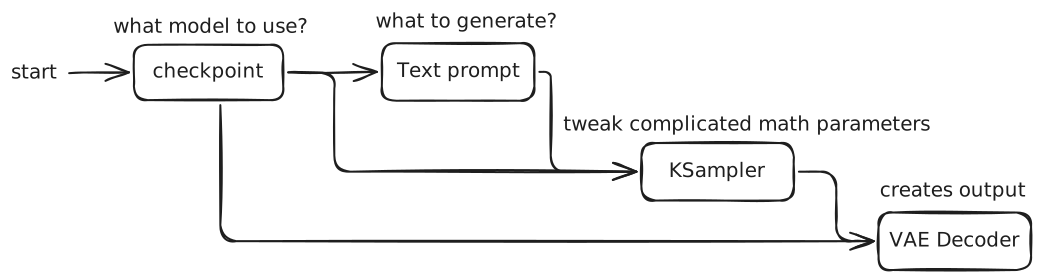
If you like to see some samples of AI art that I generated on my PC, head over to my post here: Generating AI art
What you need
- An hour of free time
- Windows-based PC
- NVidia GPU (Nice to have)
Install ComfyUI
- Go to https://github.com/comfyanonymous/ComfyUI/releases .
- Under the Assets of the latest version, download the
ComfyUI_windows_portable_nvidia.7zfile. - Extract the downloaded file. You should have the
ComfyUI_windows_portablefolder which contains the installation of ComfyUI. - Start ComfyUI by running
ComfyUI_windows_portable\run_nvidia_gpu.bat(if you have an NVIDIA GPU) orComfyUI_windows_portable\run_cpu.bat. You should see a console window popup and your browser navigating tohttp://127.0.0.1:8188/. This is the web UI of ComfyUI.
Your first workflow
Since we are newbies, we will use the sample workflow.
- In the web UI, go to Workflow > Browse Templates. This launches the Get Started with a Template popup.
- Select Image Generation.
- You probably will see a Missing Models warning with a prompt to download the model. Download it. (The warning happens because the ComfyUI installation does not include any models.)
- Move the downloaded model to the
ComfyUI_windows_portable\ComfyUI\models\checkpointsfolder. - We have resolved the issue so switch back to the web UI and dismiss the Missing Models warning. You should be able to see the workflow containing nodes and edges already wired up for you.
Generating your first image
- In the workflow (the screen with nodes and edges), select the top CLIP Text Encode node. This is your positive prompt (i.e. what you want to be generated). Provide a description here.
- Click on the
Runbutton at the bottom of the screen. - Wait patiently while your image is being generated. When it is completed, your image will be automatically saved in the
ComfyUI_windows_portable\ComfyUI\outputfolder.
Congratulations on your first AI generated art!
Feel free to continue exploring other templates.